
Keep tools opposite navigation.
Files, Changes, Terminal, Desktop, and Portal move left in right-sidebar mode. Their dividers resize in the direction you drag.
A few better defaults for the way you work. Move navigation to the right, make room for your threads, and give subagents a place of their own.
Install locallyVersion 1.2.0 · Free, open source. For Amp in desktop Chrome.
Not on the Chrome Web Store yet.
Same Amp. A different point of view.
Navigation on one side. Agent output on the other. Your conversation in the middle.
Pick a side without switching anything else off. Layout settings and the optional reading panel have independent controls in Options.
The sidebar starts on the right. The pinned extension icon, sidebar header arrow, and Move sidebar to the right setting all switch placement only. The toolbar's R/L badge shows your saved side.
In right mode, drag the divider to set your width. Double-click to restore Amp's width. Your choice stays put across tabs and browser restarts.
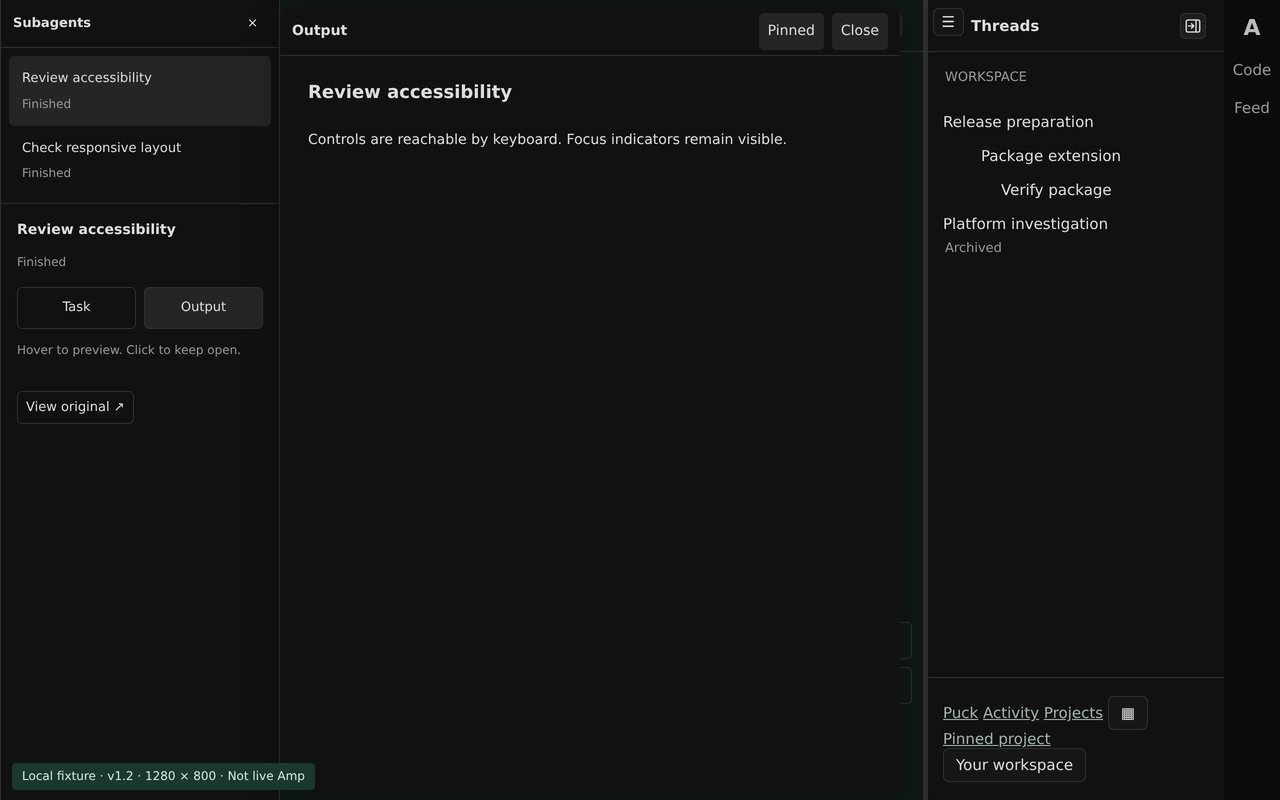
Open Subagents in the desktop conversation header for a compact agent list opposite navigation. Hover or focus Task or Output to preview a wider reading sheet. Click to pin it open.
Files and Changes can stay alongside the list; narrower desktop windows use an overlay. Escape closes the sheet first, then the panel. View original reveals the selected activity inline.
Files, Changes, Terminal, Desktop, and Portal move left in right-sidebar mode. Their dividers resize in the direction you drag.
Hide the desktop sidebar's bottom section, including shortcuts and the account row. It's visible by default and easy to restore in Options.
Right-sidebar thread cards open to the left on hover or keyboard focus. Tool rows get a subtle tint; active subagent dots pulse gently, or stay still with reduced motion.
The Web Store release is in preparation. For now, load the open-source extension locally in Chrome.
Download source ZIPDownloads the repository's main branch from GitHub.
No build step needed.
Unzip the source into a permanent folder. Inside it, find the amp-sidebar-right-main folder containing manifest.json. Keep that folder; Chrome loads the extension from it.
Type chrome://extensions into Chrome's address bar. Enable Developer mode, click Load unpacked, and select the folder containing manifest.json, not the ZIP. Keep Developer mode on. Chrome may show a developer-mode warning.
Pin amp better defaults from Chrome's Extensions menu. Refresh existing Amp tabs, then click the pinned icon to switch sides. Right-click the icon and choose Options to customize each feature.
Just a local extension.
Your Amp account stays yours.
No. This is an independent, MIT-licensed project. It is not affiliated with or endorsed by Amp. The Amp name identifies the service it works with.
The extension needs local storage and access to ampcode.com only. Chrome may describe that access as reading and changing site data. Eight active layout and feature preferences are saved in your local Chrome profile, not synced between devices. Inline summaries and the reading panel use rendered subagent titles, statuses, tasks, results, and errors in memory for the current thread, expanding Amp's native disclosures as needed. That view is discarded on navigation or reload; subagent content is never saved or transmitted. No additional history is fetched. The extension makes no network requests and has no analytics.
Read the full privacy policyNo. Use Amp in desktop Chrome or a Chrome-installed PWA. Chrome extensions cannot modify the separate native Amp app, and Chrome on mobile does not support extensions. Below 768px in a supported browser, navigation stays native and subagents use compact inline summaries rather than the desktop panel.
Right-click the extension's toolbar icon and choose Options. Layout settings and the desktop reading panel have separate checkboxes. Switching sides does not disable other features, and turning off the panel keeps inline summaries. There is no master on/off switch in v1.2. To remove all extension changes, disable or remove the extension in Chrome, then refresh open Amp tabs.
Amp's page structure isn't a public API. A site update may require an extension update. Disable the extension in Chrome and refresh Amp if something looks wrong, and report the issue on GitHub. Local installs do not auto-update: download and extract the new source ZIP, replacing the files in the existing folder Chrome loads. For a cloned install, run git pull in that folder instead. Click Reload in Chrome's extensions page, re-enable the extension if you disabled it, and refresh Amp. Keep the installed folder in place; deleting or moving it breaks the install.
Your next thread can feel a little more like you.